Do you want to know about developer options on Android?
Android is known to be the most featured rich mobile operating system in the world. It has tons of exciting features per-built inside it. Moreover, different brands offer custom UI to take even more features. But you can take this thing even further? How will you do this? What features will you get? You will get to know all this, so be here.
What are Developer Options for Android?
Most Android phones already have tons of customization features. Not just phones it goes the same for Android tablets as well. You may be surprised to know that you can unlock even more features. Some features are exciting that can come in handy in various ways. This setting is known as developer options in Android. Some people know it as developer mode. Now you are familiar with developer mode, let’s understand how to enable it on your device.
How to Enable Developer Options in Android A.K.A Developer Mode?
Enabling developer options in Android is extremely simple. Just a few clicks, and you are good to go. These features are hidden by default because most people don’t are not tech-savvy. They use their phone for general purposes. Below I have shown the steps that you can follow to enable it. However, the process may vary from device to device, due to different Android versions and custom UI. But the option is available on each device.
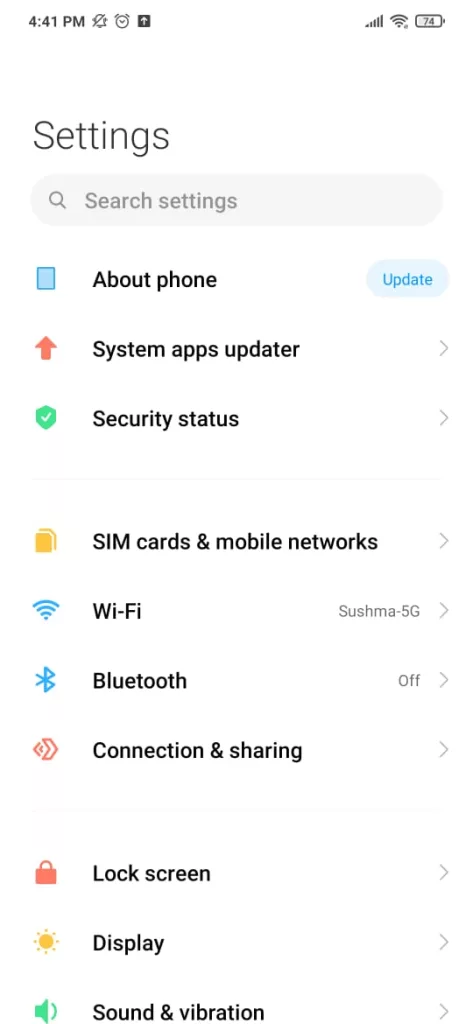
To enable it, you need to go to settings first. After that, go to about the phone(about tablets for tablets). Now you need to find the build number inside about phone settings. Once you get there, click on the build number multiple times. You will get see you are X steps away from being a developer message. Continue clicking the build number, until you see the, you are a developer now message.

That’s it, you just unlocked the developer options in Android. Now if you go to additional settings in your Android device, you will see developer options there.
Now you have unlocked the developer settings in your Android, I will quickly explain to you the most essential developer settings/features.
Essential Developer Option Settings
1. Stay Awake
As the name suggests, this setting prevents your phone screen from turning off while charging. This feature can be helpful when you are doing stuff in which you don’t your device to turn off.
2. Desktop Backup Password
This setting is more like a security feature for your device. This creates a backup password for your device.
3. Demo Mode
Demo mode is a fun feature to use. However, in day-to-day use, it may not have much usage. But it is helpful for those who use a device to give a usage trial to their customers. While the setting is on, the clock on the status bar stops working. Moreover, the signal bars and battery levels are both shown as full. If you want to reset settings to its original state, you have to reboot the device.
4. USB Debugging
USB debugging allows our device to communicate with a computer over USB. It can come in handy in numerous tasks such as sideloading apps and changing systems settings. I would not recommend enabling it if you aren’t sure what you want to do with this setting.
5. Mobile Data Always Active
In most androids, your device shuts off your data connection when using WiFi. This is because using both simultaneously drains the battery faster than using one at a time. Enabling this option prevents your device from doing so. You can enable it if you are OK with that extra battery consumption.
6. Change Animation Settings
The OS has a default set of animation settings that runs whenever you perform any tasks. By default, it is one. But you have the developer options in Androids gives you the power to change it as per your needs. Go to developer options and scroll down till you find window animation scale, transition animation scale etc. Setting the number to lower makes animations fast and improves battery life. On the other hand, changing it to higher makes animation smooth but consumes more battery life.
Read, What is avple? And How Can You Use It?
Why Most People Don’t Know About Developer Options in Android?
Above, I tried to show you the essential features of developer options. However, this setting is not limited to just this. You have lots of other features also that you can try. Still, most people don’t know about it because Android OS has evolved so much over the years. Earlier, the Android OS used to have fewer features. For this reason, people used to look for extra features. But now the story is different. Android has a lot of features and if you use custom UI you get even more. That’s why people these days don’t look for extra features. However, there are many things you can only do while developer options are on, so it depends on what you want.